For most developers, I’d start with the Anker 565 11-in-1: its mix of HDMI, DisplayPort, Ethernet, and multiple ports suits a desk with varied peripherals. The Acroname USBHub3c stands apart for programmable lab work and USB-C power testing, while the Belkin 4-Port is a simpler pick for fast data and pass-through charging. The main tradeoff is between compact hubs for everyday laptop use and larger models that add display options, wired networking, or specialized controls. Host-device limits also matter: a hub cannot add display capabilities that a laptop’s USB-C port does not support. Read on for the full breakdown and a guide to matching a hub to your development setup.

Get business pricing on monitors, keyboards and dev gear
- Business-only prices and quantity discounts
- Tax-exempt purchasing
- Multiple users, one account, clear invoices
Key Takeaways
- The Anker 565 is the strongest all-around desk choice in this lineup because it combines HDMI, DisplayPort, Ethernet, and a broad set of connections without specializing in just one task.
- Acroname’s USBHub3c serves a different job from consumer hubs: its programmable ports and power testing suit USB-C development and lab workflows, not ordinary laptop expansion.
- Dual-display models are not interchangeable. The Anker 7-in-1, Anker 364, Anker 10-in-1, and Anker Nano 8-in-1 offer distinct display layouts, so buyers should check host support and monitor requirements before choosing.
- Port count does not tell the whole story. UGREEN and Acer’s 5-in-1 each emphasize four USB-C data ports, while models such as the Anker 8-in-1 add Ethernet and HDMI for a broader desk setup.
- There are practical picks at both ends of the complexity range: the Anker 332 suits a basic setup, while the Belkin and StarTech 4-port hubs focus on 10 Gbps data and 100W pass-through rather than video expansion.
| UGREEN 5-Port USB-C Hub with 4 USB-C 3.2 Data Ports and 100W PD |  | Best for USB-C Peripheral Workflows | Ports: 4 USB-C data ports and 1 USB-C PD port | Data speed: Up to 10Gbps | Host charging: Up to 95W via 100W PD 3.0 input | VIEW LATEST PRICE | See Our Full Breakdown |
| Anker 7-in-1 USB-C Hub with Dual HDMI Displays |  | Best for Dual-Display Windows Setups | Ports: 7 | Video output: Dual HDMI, up to 1080p at 60Hz | Data speed: Up to 10Gbps | VIEW LATEST PRICE | See Our Full Breakdown |
| Anker 565 11-in-1 USB-C Hub with Dual HDMI and DisplayPort |  | Best for Mixed Desk Peripherals | Ports: 11 | Video outputs: HDMI and DisplayPort | Dual display: Up to 2K at 60Hz with DP 1.4; up to 1080p at 60Hz with DP 1.2 | VIEW LATEST PRICE | See Our Full Breakdown |
| Acroname USBHub3c 8-Port Programmable USB-C Hub and PD Power Tester |  | Best for USB-C Hardware Development | Ports: 8 USB-C: 6 controllable data/power ports, 1 control port, 1 power input | Data speed: Up to 10Gbps | USB Power Delivery: Up to 20V/5A per port | VIEW LATEST PRICE | See Our Full Breakdown |
| Anker 7-in-1 USB-C Hub with 4K HDMI, USB-A, USB-C, and SD/TF Card Reader |  | Best Compact Everyday Hub | Ports: 7 | HDMI: Up to 4K at 60Hz | USB-A data: 2 ports, up to 5Gbps | VIEW LATEST PRICE | See Our Full Breakdown |
| Belkin 4-Port USB-C Hub Adapter, 10 Gbps, 100W Pass-Through Charging |  | Best for USB-C-Only Workstations | Ports: 4 USB-C ports | Maximum data transfer rate: Up to 10 Gbps | Pass-through charging: Up to 100W input; up to 85W to host | VIEW LATEST PRICE | See Our Full Breakdown |
| Anker 364 10-in-1 USB-C Hub with Dual 4K HDMI |  | Best for Dual-Monitor Desk Setups | Total ports: 10 | Connectivity: 2 HDMI, 1 USB-C data, 3 USB-A, USB-C PD-IN, Ethernet, SD reader, USB-C upstream | Maximum data transfer rate: 5 Gbps | VIEW LATEST PRICE | See Our Full Breakdown |
| Arduino USB-C Hub (8-in-1) with HDMI, Ethernet, USB, and Card Readers |  | Best for Arduino and Embedded-Systems Benches | Model: TPX00241 | Number of ports: 8 | USB ports: 4 total; USB-A 2.0 at 480 Mbps, USB-A 3.0 at 5 Gbps, USB-C data at 480 Mbps | VIEW LATEST PRICE | See Our Full Breakdown |
| Anker 8-in-1 USB-C Hub with Ethernet and 4K HDMI |  | Best for Fast Transfers and a Single 4K Display | Ports: 8: HDMI, Ethernet, USB-C PD input, USB-C data, 2 USB-A data, microSD/SD reader | Maximum data transfer rate: Up to 10 Gbps | HDMI output: Up to 4K at 60 Hz with DP 1.4; up to 4K at 30 Hz with DP 1.2 | VIEW LATEST PRICE | See Our Full Breakdown |
| Acer 6-in-1 USB-C Hub with 4K HDMI and 100W Power Delivery |  | Best Compact High-Power Pick | Ports: 1 HDMI, 2 USB-C 3.2, 1 USB-A 3.2, 1 USB-A 2.0, 1 USB-C PD | HDMI output: Up to 4K at 60 Hz | Maximum data transfer rate: Up to 10 Gbps | VIEW LATEST PRICE | See Our Full Breakdown |
| Acer 5-in-1 USB-C Hub with Four USB-C 3.2 Ports and 100W Power Delivery |  | Best for USB-C Peripheral Stacks | Ports: 4 USB-C 3.2 Gen 2 data ports and 1 USB-C PD port | Shared data rate: Up to 10 Gbps | Power delivery: Up to 100W | VIEW LATEST PRICE | See Our Full Breakdown |
| Anker 332 5-in-1 USB-C Hub with 4K HDMI | 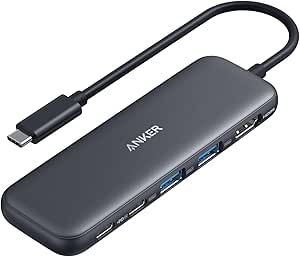 | Best for Simple Desk Setups | Ports: 4K HDMI, 1 USB-C data, 2 USB-A data, 1 USB-C PD-IN | Data rate: Up to 5 Gbps | Pass-through charging: Up to 85W | VIEW LATEST PRICE | See Our Full Breakdown |
| Anker 10-in-1 USB-C Hub with Smart Display and Dual Monitor Support |  | Best Premium Desk Hub | Ports: 10 | Video outputs: HDMI 2.1 and DisplayPort 1.4 | Single-display output: Up to 4K at 144 Hz or 2K at 240 Hz | VIEW LATEST PRICE | See Our Full Breakdown |
| StarTech 4-Port USB-C Hub with 10Gbps Data and 100W Power Delivery |  | Best for Fast USB-C Data | Ports: 4 USB-C ports | Dedicated data ports: 3 | Data transfer rate: Up to 10 Gbps | VIEW LATEST PRICE | See Our Full Breakdown |
| Anker Nano 8-in-1 USB-C Hub with Dual HDMI |  | Best for Windows Dual-Display Setups | Ports: 8 | HDMI outputs: 2, up to 4K at 60 Hz | Dual-display support: Dual 4K at 60 Hz with DP 1.4 and DSC 3:1 | VIEW LATEST PRICE | See Our Full Breakdown |
| USB-C hubs for developer | Ports | Compatibility |
|---|---|---|
| UGREEN 5-Port USB-C Hub with 4 | 4 USB-C data ports and 1 USB-C PD port | Windows, macOS, Linux, iPadOS, iOS, and Android |
| Anker 7-in-1 USB-C Hub with Du | 7 | USB-C, USB4, and Thunderbolt; macOS 12+, Windows 10/11, and ChromeOS |
| Anker 565 11-in-1 USB-C Hub wi | 11 | USB-C, USB4, and Thunderbolt; macOS 12+, Windows 10/11, and ChromeOS; Linux unsupported |
| Acroname USBHub3c 8-Port Progr | 8 USB-C: 6 controllable data/power ports, 1 control port, 1 power input | Linux Mint 22, macOS 14 Sonoma, and Windows 11 |
| Anker 7-in-1 USB-C Hub with 4K | 7 | Windows and Mac with USB-C DP Alt Mode and Power Delivery; USB4 and Thunderbolt 3/4/5 |
| Belkin 4-Port USB-C Hub Adapte | 4 USB-C ports | USB-C Mac, Windows, and Chrome devices |
| Anker 364 10-in-1 USB-C Hub wi | — | USB-C, USB4, and Thunderbolt; macOS 12 or newer, Windows 10/11, and ChromeOS with DP Alt Mode and Power Delivery |
| Arduino USB-C Hub | — | — |
| Anker 8-in-1 USB-C Hub with Et | 8: HDMI, Ethernet, USB-C PD input, USB-C data, 2 USB-A data, microSD/SD reader | USB-C, USB4, and Thunderbolt; macOS 12 or newer, Windows 10/11, and ChromeOS with DP Alt Mode and Power Delivery |
| Acer 6-in-1 USB-C Hub with 4K | 1 HDMI, 2 USB-C 3.2, 1 USB-A 3.2, 1 USB-A 2.0, 1 USB-C PD | USB-C devices with DisplayPort Alt Mode |
| Acer 5-in-1 USB-C Hub with Fou | 4 USB-C 3.2 Gen 2 data ports and 1 USB-C PD port | — |
| Anker 332 5-in-1 USB-C Hub wit | 4K HDMI, 1 USB-C data, 2 USB-A data, 1 USB-C PD-IN | USB-C, USB4, Thunderbolt |
| Anker 10-in-1 USB-C Hub with S | 10 | Windows 10/11 and macOS; not Linux; USB-C with Power Delivery and DisplayPort, USB4, Thunderbolt 3/4/5 |
| StarTech 4-Port USB-C Hub with | 4 USB-C ports | — |
| Anker Nano 8-in-1 USB-C Hub wi | 8 | USB-C, USB4, Thunderbolt; Windows 10/11 and ChromeOS; macOS mirrors displays; Linux unsupported |
More Details on Our Top Picks
UGREEN 5-Port USB-C Hub with 4 USB-C 3.2 Data Ports and 100W PD
For a developer juggling USB-C drives, phones, and other data peripherals, the UGREEN 5-Port puts four 10Gbps USB-C data ports in a compact hub. That makes it a more focused choice than the Anker 7-in-1 with 4K HDMI, whose ports cover more connection types but offer fewer USB-C data connections. A separate PD input can pass up to 95W to the host, helping keep a compatible laptop charged while peripherals are connected. The tradeoff is a narrow job description: none of the data ports carries video or supplies power to peripherals, and you will need your own charger and cable. Its light plastic build suits a desk or travel kit, but developers who need Ethernet, USB-A, or display output should choose a broader hub.
Pros:- Four USB-C data ports support speeds up to 10Gbps.
- Separate PD input supports up to 95W host charging.
- Compact 50 g design is easy to carry.
- Plug-and-play compatibility spans Windows, macOS, Linux, and mobile operating systems.
Cons:- USB-C data ports do not support video output.
- Data ports do not provide power delivery to peripherals.
- Charger and charging cable are not included.
Best for: Developers who connect several USB-C data devices and want host charging in a compact hub.
Not ideal for: Laptop users who need HDMI, Ethernet, USB-A, or power delivery to connected peripherals.
- Ports:4 USB-C data ports and 1 USB-C PD port
- Data speed:Up to 10Gbps
- Host charging:Up to 95W via 100W PD 3.0 input
- Video output:Not supported
- Compatibility:Windows, macOS, Linux, iPadOS, iOS, and Android
- Dimensions:4.1 × 1.5 × 0.5 in
- Weight:50 g
- Enclosure:Plastic
Our verdict“Choose this if your developer setup needs several fast USB-C data connections; skip it if you also need display output or mixed port types.”
Anker 7-in-1 USB-C Hub with Dual HDMI Displays
The Anker 7-in-1 is aimed at developers who want two HDMI connections from one laptop port without carrying a larger dock. Both displays top out at 1080p and 60Hz, so it suits code editors, terminals, and documentation better than high-resolution design work. Compared with the Anker 565 11-in-1, it is the more display-focused, smaller option; the 565 adds Ethernet, card readers, and DisplayPort, but can reach 2K dual output with DP 1.4. This hub also passes up to 85W to the laptop from a compatible 100W input. Its limits matter: there is no Ethernet, Linux is unsupported, and macOS mirrors the same image across both monitors. A wall charger is not included.
Pros:- Two HDMI outputs support up to 1080p at 60Hz.
- Data transfer reaches up to 10Gbps.
- Passes through up to 85W to a compatible host.
- Works with compatible USB-C, USB4, and Thunderbolt laptops.
Cons:- macOS mirrors the same image on both external monitors.
- Linux is not supported.
- No Ethernet port, and the wall charger is not included.
Best for: Windows or ChromeOS developers who want two 1080p monitors and a compact hub for desk use.
Not ideal for: Linux users, Mac users who need extended desktops across both displays, or developers who rely on wired Ethernet.
- Ports:7
- Video output:Dual HDMI, up to 1080p at 60Hz
- Data speed:Up to 10Gbps
- Power input:100W
- Host power output:Up to 85W
- Compatibility:USB-C, USB4, and Thunderbolt; macOS 12+, Windows 10/11, and ChromeOS
- Linux:Not compatible
- Dimensions:4.5 × 2.1 × 0.7 in
Our verdict“Pick this for a compact dual-screen Windows setup; choose the Anker 565 11-in-1 if you need Ethernet, card slots, or DisplayPort.”
Anker 565 11-in-1 USB-C Hub with Dual HDMI and DisplayPort
The Anker 565 earns its place for developers who want a single dock for monitors, wired networking, audio, and removable media. Its 11 ports include HDMI, DisplayPort, Ethernet, AUX, and SD and microSD readers, so it covers a desk setup more broadly than the Anker 7-in-1 dual-HDMI hub. It also offers two 10Gbps data connections and up to 85W pass-through charging. Display support depends on the host connection: dual output can reach 2K at 60Hz with DP 1.4, while DP 1.2 lowers that to 1080p at 60Hz. Mac users should know the two external displays mirror, and Linux users should look elsewhere. The aluminum enclosure adds a sturdier feel, but its wider range of ports makes it less compact than simpler hubs.
Pros:- Eleven ports include Ethernet, AUX, HDMI, DisplayPort, and SD and microSD slots.
- Two data ports support up to 10Gbps.
- Dual displays can reach 2K at 60Hz with DP 1.4.
- Aluminum enclosure and up to 85W host charging.
Cons:- Linux is not supported.
- macOS mirrors the same image on both external displays.
- Pass-through charging requires a separate power adapter.
Best for: Developers building a fixed desk setup with Ethernet, multiple display connection options, and SD card access.
Not ideal for: Linux developers, Mac users who need separate content on two external monitors, or travelers prioritizing a small, light hub.
- Ports:11
- Video outputs:HDMI and DisplayPort
- Dual display:Up to 2K at 60Hz with DP 1.4; up to 1080p at 60Hz with DP 1.2
- USB-C data:Up to 10Gbps
- USB-A data:1 port at 10Gbps; 2 ports at 480Mbps
- Pass-through charging:Up to 85W
- Other connections:Ethernet, AUX, SD, and microSD
- Compatibility:USB-C, USB4, and Thunderbolt; macOS 12+, Windows 10/11, and ChromeOS; Linux unsupported
- Enclosure:Aluminum
Our verdict“Choose the Anker 565 for a port-rich developer desk; the Anker 7-in-1 is a better fit if you only need dual HDMI in a smaller hub.”
Acroname USBHub3c 8-Port Programmable USB-C Hub and PD Power Tester
This Acroname hub is a lab instrument for developers building or debugging USB-C devices, rather than a general laptop dock. Its six controllable data and power ports support configurable power profiles and per-port voltage and current measurement, making it useful for repeatable device tests that a consumer hub such as the UGREEN 5-Port cannot run. It also supports data speeds up to 10Gbps and USB-PD modes up to 20V/5A per port. The tradeoff is size and purpose: it weighs 1.1 lb, occupies a substantial footprint, and offers no listed display, Ethernet, or card-reader connections. Two of its eight ports are reserved for control and power input. The included 100W adapter and cables help make it lab-ready, while the 50°C operating limit may constrain warmer test environments.
Pros:- Six ports allow data and power control.
- Measures voltage and current with stated accuracy of ±0.05% and ±0.2%.
- Supports configurable USB-PD profiles and up to 10Gbps data.
- Rugged steel enclosure, DIN rail mounting, adapter, and cables are included.
Cons:- Control and power input consume two of the eight ports.
- At 1.1 lb, it is much heavier than travel hubs such as the UGREEN 5-Port.
- Operating temperature is limited to 50°C.
Best for: Hardware and firmware developers who need programmable USB-C power control and measurement across multiple devices.
Not ideal for: Laptop users seeking a portable everyday dock with monitor output, Ethernet, or mixed legacy ports.
- Ports:8 USB-C: 6 controllable data/power ports, 1 control port, 1 power input
- Data speed:Up to 10Gbps
- USB Power Delivery:Up to 20V/5A per port
- Power profiles:Fixed, Variable, Battery, and SPR
- Measurement accuracy:Voltage ±0.05%; current ±0.2%
- Compatibility:Linux Mint 22, macOS 14 Sonoma, and Windows 11
- Enclosure and mounting:Steel; DIN rail compatible
- Dimensions and weight:7.95 × 4.88 × 1.17 in; 1.1 lb
- Included power:100W adapter and three USB cables
Our verdict“Choose the Acroname for USB-C device development and power testing; it is excessive for everyday laptop expansion.”
Anker 7-in-1 USB-C Hub with 4K HDMI, USB-A, USB-C, and SD/TF Card Reader
The Anker 7-in-1 balances the connections many developers use day to day: 4K HDMI, USB-A, USB-C data, and SD/TF card readers in a compact metal body. Its 4K output at 60Hz gives it a sharper single-monitor role than the dual 1080p HDMI Anker 7-in-1, while the card slots suit developers who move files from cameras or removable media. Data speeds reach 5Gbps, below the 10Gbps offered by the UGREEN 5-Port and Anker 565, so large project or disk transfers may take longer. It passes up to 85W to a compatible laptop, but needs a separate charger and a host USB-C port with DP Alt Mode and Power Delivery. It is a practical mixed-port companion, not a high-speed multi-device dock.
Pros:- HDMI supports up to 4K at 60Hz.
- Includes two USB-A ports, USB-C data, and SD/TF card slots.
- Metal enclosure weighs 67 g.
- Passes through up to 85W of laptop charging.
Cons:- USB data ports top out at 5Gbps.
- Only HDMI supports video output.
- A compatible charger is required and not included.
Best for: Developers who travel with a USB-C laptop and need one 4K monitor, USB-A accessories, and removable-media readers.
Not ideal for: Developers who need multiple external displays, 10Gbps peripheral transfers, or Linux compatibility.
- Ports:7
- HDMI:Up to 4K at 60Hz
- USB-A data:2 ports, up to 5Gbps
- USB-C data:1 port, up to 5Gbps
- Power input:USB-C PD, up to 100W
- Host charging:Up to 85W
- Card readers:SD and TF
- Compatibility:Windows and Mac with USB-C DP Alt Mode and Power Delivery; USB4 and Thunderbolt 3/4/5
- Dimensions and weight:5.17 × 1.46 × 0.47 in; 67 g
Our verdict“Pick this for a portable mix of 4K HDMI, USB-A, and card readers; choose the Anker 565 for faster data and a wider desk setup.”
Belkin 4-Port USB-C Hub Adapter, 10 Gbps, 100W Pass-Through Charging
I’d choose the Belkin 4-Port USB-C Hub when a developer’s main need is adding USB-C connections for fast storage, a webcam, and other peripherals—not building a full desk dock. Its four USB-C ports and up to 10 Gbps data speeds give it a more focused role than the Anker 364, which trades a simpler layout for HDMI, Ethernet, and card-reader connections. Belkin also supports up to 100W pass-through, though the hub uses up to 15W, leaving up to 85W for the host. That is a sensible match for many laptops, but buyers should account for the reduced output. Its small, light housing is easy to carry; the tradeoff is that it offers no video, networking, or USB-A ports.
Pros:- Four USB-C ports for connecting modern peripherals.
- Up to 10 Gbps data transfer for compatible devices.
- Supports up to 100W pass-through charging, with up to 85W delivered to the host.
- Compact 50 g design with a housing made from at least 72% post-consumer recycled plastic.
Cons:- No HDMI, Ethernet, SD-card reader, or USB-A connections.
- The hub uses up to 15W, limiting host charging to 85W.
- Requires a USB-C-compatible host device.
Best for: Developers with USB-C laptops who mainly connect USB-C storage and peripherals and want a compact hub that supports laptop charging.
Not ideal for: Developers who need external displays, wired Ethernet, SD cards, or USB-A devices; this hub provides USB-C ports only.
- Ports:4 USB-C ports
- Maximum data transfer rate:Up to 10 Gbps
- Pass-through charging:Up to 100W input; up to 85W to host
- Dimensions:2.95 × 1.65 × 0.55 in
- Weight:50 g
- Enclosure:Plastic with at least 72% post-consumer recycled content
- Compatibility:USB-C Mac, Windows, and Chrome devices
- Warranty:2-year limited warranty
Our verdict“Choose this Belkin for a small, USB-C-only peripheral setup, but pick the Anker 364 if your desk needs display and network connections too.”
Anker 364 10-in-1 USB-C Hub with Dual 4K HDMI
For developers who want a single hub to cover displays, networking, and removable media, the Anker 364 is the broadest desk-oriented pick in this group. It combines two HDMI ports, gigabit Ethernet, an SD reader, and USB-A and USB-C data connections, unlike the simpler Belkin four-port hub. The display tradeoff matters: one monitor can run at 4K and 60 Hz, while two are limited to 4K at 30 Hz. On macOS, both external screens mirror the same content, so this is not the right choice for an extended dual-monitor workflow on a Mac. Data tops out at 5 Gbps, below the Anker 8-in-1’s 10 Gbps, and Linux is unsupported. I’d favor it for Windows or ChromeOS desks that value port variety over faster transfers.
Pros:- Combines two HDMI ports, Ethernet, an SD-card reader, and USB-A and USB-C data ports.
- Supports one display at up to 4K at 60 Hz or two at up to 4K at 30 Hz.
- Provides up to 1 Gbps Ethernet for wired network access.
- Supports up to 85W pass-through charging.
Cons:- macOS mirrors the same content on both external displays.
- Maximum data transfer rate is 5 Gbps, slower than the Anker 8-in-1.
- Not compatible with Linux, and the pass-through charger is not included.
Best for: Windows or ChromeOS developers who need HDMI displays, wired Ethernet, an SD reader, and several USB connections from one hub.
Not ideal for: Linux users, Mac developers who need separate content on two external monitors, and anyone prioritizing 10 Gbps data transfers.
- Total ports:10
- Connectivity:2 HDMI, 1 USB-C data, 3 USB-A, USB-C PD-IN, Ethernet, SD reader, USB-C upstream
- Maximum data transfer rate:5 Gbps
- Display output:One display up to 4K at 60 Hz; two displays up to 4K at 30 Hz
- Pass-through charging:Up to 85W
- Ethernet:Up to 1 Gbps
- Compatibility:USB-C, USB4, and Thunderbolt; macOS 12 or newer, Windows 10/11, and ChromeOS with DP Alt Mode and Power Delivery
- Linux compatibility:Not compatible
- Dimensions and weight:5.61 × 2.48 × 0.6 in; 3.52 oz
Our verdict“Pick the Anker 364 for a port-rich Windows or ChromeOS desk, but skip it for Linux or independent dual displays on macOS.”
Arduino USB-C Hub (8-in-1) with HDMI, Ethernet, USB, and Card Readers
This hub has a distinct place in a developer roundup: it is aimed at Arduino boards and the UNO Q as well as USB-C laptops, making it a natural fit for an embedded-systems bench with a display, network connection, and card readers nearby. Its eight connections include HDMI, Ethernet, USB ports, and SD and microSD readers, while 65W power passthrough lets a compatible laptop stay powered during use. Compared with the Anker 364, its 100 Mbps Ethernet is a major limitation for large transfers or network-heavy work. The USB-C data port and USB-A 2.0 port also run at only 480 Mbps, so this is not the fast-storage choice in the group. I’d select it for board compatibility and basic bench connectivity, not as a high-speed general-purpose dock.
Pros:- Designed for Arduino boards and the Arduino UNO Q, as well as USB-C laptops.
- Combines HDMI, Ethernet, four USB ports, and SD and microSD card readers.
- Supports 65W USB-C power passthrough.
- Compact 60 g build with aluminum and plastic construction.
Cons:- Ethernet is limited to 100 Mbps, far below the Anker 364’s gigabit connection.
- USB-C data and USB-A 2.0 ports are limited to 480 Mbps.
- HDMI output is limited to 4K at 30 Hz.
Best for: Arduino and embedded-systems developers who need a compact hub for compatible boards, a monitor, basic networking, and SD-card access.
Not ideal for: Developers who regularly move large files over Ethernet or need fast USB-C peripheral transfers; its Ethernet and some USB connections are limited to 100 Mbps and 480 Mbps respectively.
- Model:TPX00241
- Number of ports:8
- USB ports:4 total; USB-A 2.0 at 480 Mbps, USB-A 3.0 at 5 Gbps, USB-C data at 480 Mbps
- HDMI output:4K at 30 Hz
- Ethernet:RJ45, 100 Mbps
- Power passthrough:65W
- Card readers:MicroSD and SD/TF
- Compatible devices:Arduino boards, Arduino UNO Q, and USB-C laptops
- Dimensions and weight:5.5 × 1.38 × 0.75 in; 60 g
Our verdict“Choose the Arduino hub for an Arduino-focused bench with modest bandwidth needs, not for a laptop setup built around fast networking or storage.”
Anker 8-in-1 USB-C Hub with Ethernet and 4K HDMI
The Anker 8-in-1 is a balanced choice for developers who want a single external display plus Ethernet, card readers, and faster peripheral connections. Its up to 10 Gbps data rate gives it an advantage over the Anker 364’s 5 Gbps limit when moving files to compatible drives, while its HDMI output supports 4K at 60 Hz with a DP 1.4 host. That refresh rate depends on the laptop: DP 1.2 limits output to 4K at 30 Hz. The built-in cable and aluminum body suit a portable setup, but the hub has only one video output, and its USB-C data port cannot drive a display. Pass-through charging reaches 85W after the hub’s 15W operating requirement. Linux users should choose another option.
Pros:- Up to 10 Gbps data transfer for compatible peripherals.
- HDMI supports up to 4K at 60 Hz with a DP 1.4 host.
- Includes Ethernet, USB-A, USB-C data, and SD and microSD card readers.
- Portable aluminum enclosure with a built-in USB-C cable.
Cons:- Only the HDMI port supports video; the USB-C data port does not.
- DP 1.2 hosts are limited to 4K at 30 Hz.
- Not compatible with Linux, and the hub uses 15W of the 100W input for operation.
Best for: Developers using a DP 1.4 USB-C laptop who want one 4K monitor, wired Ethernet, card readers, and up to 10 Gbps data connections.
Not ideal for: Linux users, developers who need two external displays, or people whose laptop lacks DP 1.4 and expects 4K at 60 Hz.
- Ports:8: HDMI, Ethernet, USB-C PD input, USB-C data, 2 USB-A data, microSD/SD reader
- Maximum data transfer rate:Up to 10 Gbps
- HDMI output:Up to 4K at 60 Hz with DP 1.4; up to 4K at 30 Hz with DP 1.2
- Pass-through charging:Up to 85W to host; hub requires 15W to operate
- Cable length:7.48 in
- Dimensions and weight:4.76 × 2.17 × 0.6 in; 4.48 oz
- Enclosure:Aluminum
- Compatibility:USB-C, USB4, and Thunderbolt; macOS 12 or newer, Windows 10/11, and ChromeOS with DP Alt Mode and Power Delivery
- Linux compatibility:Not supported
Our verdict“Choose this Anker for a portable single-monitor setup that benefits from 10 Gbps data, but check host display support and avoid it for Linux.”
Acer 6-in-1 USB-C Hub with 4K HDMI and 100W Power Delivery
For developers who want charging, a monitor, and a useful set of data ports without carrying a larger dock, the Acer 6-in-1 keeps the package light at 30 g. It offers HDMI up to 4K at 60 Hz, two USB-C 3.2 ports, two USB-A ports, and up to 10 Gbps data transfer. Compared with the Belkin four-port hub, Acer adds video and USB-A while retaining fast data; compared with the Anker 8-in-1, it gives up Ethernet and card readers for a smaller, simpler setup. Its power input reaches 100W, with up to 90W delivered to the laptop. The short integrated cable may constrain placement, and video requires DisplayPort Alt Mode on the host, so confirm laptop support before choosing it.
Pros:- Supports HDMI output up to 4K at 60 Hz.
- Provides up to 10 Gbps data transfer across compatible connections.
- Accepts up to 100W power input and delivers up to 90W to the laptop.
- Lightweight 30 g design with an integrated cable.
Cons:- No Ethernet or SD-card reader, unlike the Anker 8-in-1.
- Video output requires a host USB-C port with DisplayPort Alt Mode.
- The integrated cable is only 5.9 inches long, and the PD adapter and cable are not included.
Best for: Developers who travel with a USB-C laptop and need a lightweight hub for one 4K monitor, USB peripherals, and laptop charging.
Not ideal for: Developers who need Ethernet or SD-card access, or whose USB-C host lacks DisplayPort Alt Mode for video output.
- Ports:1 HDMI, 2 USB-C 3.2, 1 USB-A 3.2, 1 USB-A 2.0, 1 USB-C PD
- HDMI output:Up to 4K at 60 Hz
- Maximum data transfer rate:Up to 10 Gbps
- Power delivery:Up to 100W input; up to 90W laptop charging
- Cable length:5.9 in (15 cm)
- Weight:30 g
- Color:Grey
- Compatibility:USB-C devices with DisplayPort Alt Mode
Our verdict“Pick the Acer for a lightweight 4K-and-charging setup with fast data, but choose the Anker 8-in-1 if Ethernet or card readers are part of your workflow.”
Acer 5-in-1 USB-C Hub with Four USB-C 3.2 Ports and 100W Power Delivery
I’d choose this Acer when a developer’s desk is crowded with USB-C devices rather than displays. Its four USB-C 3.2 Gen 2 data ports suit current external drives, dev boards, and other peripherals, while the separate 100W PD port can keep a compatible laptop charged. The aluminum enclosure and 60 g weight make it easy to carry between workspaces.
That focus sets it apart from the StarTech 4-Port USB-C Hub, which offers three dedicated data ports and a fourth port that can switch between data and charging. Acer instead gives you four data connections, but its 10 Gbps bandwidth is shared, and the maker recommends only one or two external drives at a time. There’s no video output, so developers who need a monitor should choose a display-equipped hub instead.
Pros:- Four USB-C data ports provide more direct connections for modern peripherals.
- Separate PD port supports up to 100W host charging.
- Aluminum enclosure is designed to dissipate heat.
- Compact 60 g design and broad operating-system compatibility suit mobile setups.
Cons:- The 10 Gbps maximum is shared across all four data ports.
- No video output for connecting a monitor.
- Manufacturer recommends connecting only one or two external drives at a time.
Best for: Developers who mainly connect several USB-C peripherals or one or two external drives and want laptop charging in a small hub.
Not ideal for: Developers who need an external display, several fast drives working at once, or USB-A ports for older accessories.
- Ports:4 USB-C 3.2 Gen 2 data ports and 1 USB-C PD port
- Shared data rate:Up to 10 Gbps
- Power delivery:Up to 100W
- Video output:None
- Enclosure:Aluminum alloy, grey
- Weight:60 g
- Cable length:0.5 ft
- Operating systems:Windows, macOS, Linux, Chrome OS, iPadOS, iOS, Android
Our verdict“Pick this Acer for a portable, USB-C-heavy peripheral setup, but skip it if video output or sustained multi-drive use is part of your workflow.”
Anker 332 5-in-1 USB-C Hub with 4K HDMI
The Anker 332 is the straightforward choice for a developer who needs one monitor connection and a mix of older and newer peripherals. Its 4K HDMI output, USB-C data port, and two USB-A ports cover a basic laptop dock without demanding a crowded desk. Up to 85W pass-through charging can reduce battery drain during long coding sessions, though you’ll need to supply a charger.
Compared with the Anker Nano 8-in-1, this hub has fewer connections and lacks card readers, but it is a simpler fit for one-display setups. The tradeoffs are meaningful: HDMI tops out at 4K at 30 Hz, the USB-C ports cannot output video, and Linux is unsupported. Its PD-IN port is charging-only, so it does not add another data connection.
Pros:- Combines HDMI, USB-C data, and two USB-A data ports in a compact hub.
- Supports an external display up to 4K resolution.
- Provides up to 85W pass-through charging with a separate charger.
- Lightweight ABS enclosure is easy to carry.
Cons:- HDMI is limited to 4K at 30 Hz.
- Not compatible with Linux.
- PD-IN is charging-only, and the required charger is not included.
Best for: Developers using Windows, macOS, or ChromeOS who need one external monitor, two USB-A accessories, and basic pass-through charging.
Not ideal for: Linux developers, users who need a high-refresh-rate display, or anyone seeking dual-monitor output and several high-speed data ports.
- Ports:4K HDMI, 1 USB-C data, 2 USB-A data, 1 USB-C PD-IN
- Data rate:Up to 5 Gbps
- Pass-through charging:Up to 85W
- HDMI output:Up to 4K at 30 Hz
- Compatibility:USB-C, USB4, Thunderbolt
- Operating systems:macOS 12 and newer, Windows 10 and 11, ChromeOS; not Linux
- Material:ABS
- Dimensions and weight:4.78 × 1.59 × 0.45 in; 1.44 oz
Our verdict“Choose the Anker 332 for a basic single-monitor laptop setup with USB-A support, not for Linux, high-refresh-rate displays, or expanded workstation connectivity.”
Anker 10-in-1 USB-C Hub with Smart Display and Dual Monitor Support
For a developer building a fixed workstation, this Anker brings the broadest mix of desk connections in this batch: HDMI, DisplayPort, Gigabit Ethernet, USB, and SD and microSD readers. Its built-in display reports port, charging, data-speed, and temperature information, while the upright magnetic base and 2.3-foot host cable help keep the hub and cabling organized. With a compatible host, its video support reaches high refresh rates.
Compared with the Anker 332, this is far more capable as a desk hub, but also larger and less suited to a simple travel setup. Its main limitation matters for developers using Macs: both external monitors mirror the same content. Linux users should also skip it, and the charger is sold separately. I’d pick it for a Windows workstation that benefits from its connectivity and status display, not as a universal dual-monitor dock.
Pros:- Combines video, Gigabit Ethernet, USB data, and SD and microSD slots.
- Built-in display reports port, charging, data-speed, and temperature information.
- Upright design, magnetic base, and 2.3-foot cable help organize desk connections.
- Supports high-refresh-rate output with compatible hosts and displays.
Cons:- macOS mirrors the same content on both external displays.
- Not compatible with Linux.
- USB-C charger is sold separately.
Best for: Windows developers setting up a desk with Ethernet, card readers, several peripherals, and one or two compatible high-refresh-rate displays.
Not ideal for: Linux developers, Mac users who need separate extended desktop content across two monitors, or travelers seeking a very small hub.
- Ports:10
- Video outputs:HDMI 2.1 and DisplayPort 1.4
- Single-display output:Up to 4K at 144 Hz or 2K at 240 Hz
- Dual-display output:Up to dual 2K at 240 Hz with a compatible host
- Data ports:1 USB-C 10 Gbps, 1 USB-A 10 Gbps, 2 USB-A 5 Gbps
- Other connections:Gigabit Ethernet, SD and microSD 3.0
- Pass-through charging:Up to 80W; charger not included
- Host cable and dimensions:Built-in 2.3 ft cable; 5.12 × 2.19 × 1.97 in
- Compatibility:Windows 10/11 and macOS; not Linux; USB-C with Power Delivery and DisplayPort, USB4, Thunderbolt 3/4/5
Our verdict“Choose this Anker for a feature-rich Windows desk setup where port monitoring and Ethernet matter, but not for Linux or independent dual displays on macOS.”
StarTech 4-Port USB-C Hub with 10Gbps Data and 100W Power Delivery
StarTech’s hub is the data-focused pick for developers who need a few fast USB-C connections without adding a large dock to the desk. It supplies three dedicated 10 Gbps data ports, so those connections do not have to share a single advertised data pool across every port. The fourth port can handle data or up to 100W Power Delivery passthrough, and the braided 8-inch host cable gives it more reach than the Acer’s short 0.5-foot lead.
The key compromise is that this fourth port is either data or power, not both at once. That makes the Acer hub a better fit if four simultaneous USB-C data connections matter more than dedicated high-speed lanes. Neither model provides video output, so developers who need a monitor should look at the Anker 332 or another display-equipped option. Recycled materials and plug-and-play setup round out a focused, compact design.
Pros:- Three dedicated USB-C data ports support up to 10 Gbps.
- Fourth port can provide data or up to 100W PD passthrough.
- Plug-and-play design requires no drivers.
- Braided cable and enclosure use stated recycled materials.
Cons:- Fourth port cannot provide data and power passthrough simultaneously.
- Power passthrough depends on host and charger capability.
- No video output or USB-A connections.
Best for: Developers who connect several fast USB-C peripherals and want dedicated data ports in a compact, driverless hub.
Not ideal for: Developers who need video output, four simultaneous data connections while charging through the hub, or USB-A ports.
- Ports:4 USB-C ports
- Dedicated data ports:3
- Data transfer rate:Up to 10 Gbps
- Fourth-port function:Data or up to 100W Power Delivery passthrough
- Host cable:8 in (20 cm), braided nylon exterior with silicone inner layer
- Dimensions and weight:3.8 × 1.1 × 0.4 in; 1.44 oz
- Enclosure materials:Aluminum and plastic
- Recycled materials:90% PCR aluminum, 75% PCR plastic, 35% PCR TPE in cable jacket
- Additional features:Plug and play; overcurrent protection
Our verdict“Pick StarTech for three dedicated 10 Gbps USB-C data connections in a compact hub, but choose another model if you need video or simultaneous use of the fourth port for data and power.”
Anker Nano 8-in-1 USB-C Hub with Dual HDMI
This Anker Nano suits developers who want two external screens plus common desk and card-reader connections in one hub. Its dual HDMI ports support up to 4K at 60 Hz on compatible Windows devices, while two USB-A ports, a USB-C data port, and SD and TF slots cover peripherals and removable media. The aluminum enclosure keeps the eight-connection setup relatively light at 3.84 ounces.
Compared with the Anker 10-in-1 hub, this model trades Ethernet and a built-in status display for dual HDMI and card slots in a compact package. Its Mac limitation is central to the choice: both screens mirror the same content on macOS, rather than extending the desktop. Linux is unsupported, and full 85W pass-through charging requires a separate 100W charger and cable. I’d choose it for a Windows laptop, not a Linux or Mac multi-monitor workflow.
Pros:- Two HDMI ports support dual 4K at 60 Hz with a compatible Windows setup.
- Eight connections include USB-A, USB-C, SD, and TF.
- USB data ports support speeds up to 10 Gbps.
- Aluminum enclosure weighs 3.84 ounces.
Cons:- macOS mirrors the same content on both external displays.
- Not compatible with Linux.
- Charger and cable are not included; full 85W charging requires a 100W PD charger and cable.
Best for: Windows developers who want dual 4K monitors, USB-A and USB-C data connections, and SD and TF card access from one hub.
Not ideal for: Linux users, Mac developers who need two independent external desktops, or buyers who need Ethernet included.
- Ports:8
- HDMI outputs:2, up to 4K at 60 Hz
- Dual-display support:Dual 4K at 60 Hz with DP 1.4 and DSC 3:1
- USB data ports:1 USB-C and 2 USB-A, up to 10 Gbps
- Card slots:SD and TF 3.0, up to 104 MB/s
- Pass-through charging:Up to 85W; USB-C PD input supports up to 100W
- Compatibility:USB-C, USB4, Thunderbolt; Windows 10/11 and ChromeOS; macOS mirrors displays; Linux unsupported
- Enclosure and weight:Aluminum, grey; 3.84 oz
- Dimensions and included accessories:7.87 × 4.13 × 0.79 in; charger and cable not included
Our verdict“Choose the Anker Nano for a compatible Windows dual-monitor desk with card-reader needs, but skip it if you rely on Linux or separate extended displays on macOS.”
How We Picked
I compared the 15 hubs by how well their stated features answer common developer needs: connecting monitors, wired networks, storage, input devices, and test equipment while keeping a laptop charged. I gave more weight to useful combinations of ports than to raw port count, and treated display outputs, USB data rates, pass-through charging, and specialist functions as separate capabilities. A hub with Ethernet or DisplayPort can be more useful at a fixed desk than one with several similar data ports; a compact basic model may be a better match for a portable setup.
The order reflects versatility for day-to-day development first, then value through practical feature balance, followed by models aimed at narrower workflows. I also account for limitations buyers can easily miss: host USB-C display support, whether a listed port is for data or video, and the fact that pass-through charging depends on an external power adapter. Since product names alone do not establish every compatibility detail, I avoid treating advertised display counts or charging wattage as a guarantee for every laptop.
Factors to Consider When Choosing USB-C Hubs For Developers
Choosing a developer hub starts with the laptop and workflow, not the number printed in the product name. I’d map the connections you need on an ordinary workday, then check the host’s capabilities before paying for extra display or charging features.
Check the Laptop’s USB-C Capabilities First
A USB-C connector describes its shape, not everything it can do. Before buying, check whether the laptop’s specific port supports video output, the relevant USB data rate, and charging input; different ports on the same machine may behave differently. This is especially important for dual-monitor hubs, since the hub cannot create video support the host lacks. Also check the operating system and graphics limits for the number and resolution of external displays. A simpler data-only hub may be the smarter choice if your laptop has limited video support, even when a larger model advertises several display outputs.
Plan Displays Around Your Actual Desk
Count the monitors you use and identify their inputs before choosing HDMI, DisplayPort, or a combination. Then verify the hub’s supported resolutions and refresh rates alongside the laptop’s own display limits; a connector’s presence alone does not promise a particular result. Some systems rely on different display technologies or operating-system support for multiple screens, so check whether the hub’s approach suits your computer. Developers who mainly use one external monitor may benefit more from Ethernet or extra data ports than from a second video output. Avoid paying for dual displays unless your host and desk can use them.
Separate Fast Data Ports From Convenient Ports
Developers may connect external SSDs, debug boards, keyboards, and other devices at the same time, but those connections do not all need the same speed. A 10 Gbps hub can help with fast storage and data-heavy peripherals, while a basic USB connection may be plenty for a keyboard or mouse. Check how many ports support the advertised rate and whether they are USB-A, USB-C, or a mix. Four USB-C data ports can be useful in a USB-C-heavy lab, but they do not replace HDMI or Ethernet. Think about the devices you will leave plugged in, not just the ones you might use occasionally.
Treat Pass-Through Charging as Part of the Setup
Pass-through charging lets a hub share a laptop’s charging connection, but the stated maximum is not necessarily the power your computer receives. The adapter, cable, hub load, and laptop requirements all affect available charging power. Check whether an external charger is included and whether the hub reserves power for its own connected devices. A hub that supports 100W pass-through can reduce cable clutter, but it does not replace verifying the laptop’s charging needs. If you already use a dock or separate charger at your desk, spending extra on a high charging figure may bring little benefit.
Choose Ethernet for Reliability, Not Just Port Count
Wired networking can be valuable when you download large builds, connect to test systems, or work where Wi-Fi is inconsistent. Yet not every developer needs an Ethernet port on a travel hub: remote work and a stable wireless network may make it redundant. Check network speed and compatibility details rather than assuming all Ethernet connections perform alike. A hub with Ethernet may replace a separate adapter and free a laptop port, while a model without it can be smaller or devote space to other connections. Consider whether your desk has an accessible network cable before making Ethernet a deciding feature.
Match the Hub’s Complexity to Its Job
More features can mean more setup decisions, extra cables, and a larger footprint. A basic hub is often easier to carry and troubleshoot, while a multi-display desk hub reduces the need for separate adapters. Specialized lab tools such as programmable ports and power testing solve development tasks that ordinary hubs are not built for, but they can be unnecessary for general coding. Think through where the hub will live, how often you will disconnect it, and whether you need its specialist functions every week. Pay for complexity when it replaces equipment or supports a real workflow, not just because the feature list is longer.
Frequently Asked Questions
Can a USB-C hub run two external monitors from any developer laptop?
No. The laptop’s USB-C port, graphics hardware, operating system, and the hub’s display design all affect whether two external monitors work. Check the laptop maker’s display limits and the hub’s supported output modes before buying. A hub listing two video connectors does not guarantee that both can be active at the resolutions you want. If your laptop supports only one external display through that port, a dual-output hub may not solve the limitation.
Should I choose a hub with Ethernet if I mostly work from home?
Choose Ethernet if your desk has a wired connection and you benefit from a stable link for large downloads, remote machines, or network testing. If your Wi-Fi is reliable and you rarely use wired networking, the port may add little value. A model with Ethernet can replace a separate adapter and leave another laptop port free, but it may be larger than a basic data hub. Decide based on your regular desk setup rather than an occasional need.
Is a 100W pass-through hub enough to charge my laptop at full speed?
Not automatically. The hub’s rating is a maximum, and the laptop may receive less after the hub and connected devices draw power. You also need a compatible external charger and cable, and the laptop must support charging through that USB-C port. Check the manufacturer’s charging requirements and the hub’s power notes before relying on it as your only charger. If your laptop has a high power draw, keep its original adapter available until compatibility is clear.
Do I need a 10 Gbps hub for software development?
Not for every workflow. Faster data can matter when you regularly move large build artifacts, disk images, or project data on external SSDs, but keyboards and common input devices do not need that bandwidth. Check which ports actually support the advertised rate, since a hub may mix faster and slower connections. If most peripherals are low-bandwidth, extra ports, Ethernet, or monitor support may be more useful than maximizing data speed. A focused 10 Gbps model makes the most sense when fast storage is part of your routine.
When does a programmable USB-C hub make sense instead of a standard multiport hub?
A programmable hub is aimed at people who develop, test, or troubleshoot USB-C devices and need more control over port behavior or power measurement. That makes the Acroname USBHub3c a specialist option rather than a general-purpose laptop accessory. For everyday coding with monitors, storage, and networking, a consumer hub is usually a more direct fit. If you are unsure whether you need programmable controls, list the test tasks you would run; without a concrete lab use, those features may go unused.
Conclusion
For a broad desk setup, I’d choose the Anker 565 11-in-1 as the best overall because its HDMI, DisplayPort, Ethernet, and varied connections cover more common developer needs than a port-focused model. The Belkin 4-Port is my best value-style pick for buyers who prioritize 10 Gbps data and 100W pass-through over video expansion; the Anker 10-in-1 with Smart Display is the best premium-style choice for a feature-rich multi-monitor desk, subject to host compatibility. Beginners with a modest setup can start with the Anker 332 5-in-1, while developers building or testing USB-C hardware should look at the Acroname USBHub3c. For a USB-C-heavy workflow, compare the UGREEN and Acer 5-in-1 models; for a portable dual-display arrangement, assess the Anker Nano 8-in-1 against your laptop’s display support. I’d make the final choice by matching the hub to the laptop’s capabilities and the devices you connect every day, not by chasing the longest feature list.