

If you’re involved in software development or quality assurance, having the right equipment can make all the difference. This checklist is designed to help you equip your workspace with reliable, high-performance tools that support productivity and accuracy. Whether you’re setting up a new office or upgrading existing gear, you’ll find essential recommendations here.
Organized into key categories, this guide covers everything from powerful laptops and networking hardware to monitoring displays and ergonomic accessories. Each section includes insights on what to look for, common pitfalls to avoid, and practical advice on compatibility and sizing. Use this checklist as a quick reference to ensure you select equipment that meets your needs and enhances your workflow.
To get the most out of this guide, start by identifying your specific requirements—such as the type of projects you handle or workspace constraints—and then review the recommendations in each category. Keep in mind that investing in quality, future-proof gear can save you time and frustration down the line. Happy shopping!
Laptops & Workstations
The HP OmniBook 16 2K Touch Laptop is a versatile choice for QA professionals and developers who need powerful performance on the go. Equipped with the Intel Ultra 7 255U processor, 16GB of RAM, and a 512GB SSD, this machine offers a balanced mix of speed and storage for intensive tasks like testing, coding, and multitasking. When selecting a laptop for development, prioritize processor speed, RAM capacity, and display quality. A high-resolution touch screen can improve productivity, especially during detailed testing or review sessions.
Common mistakes include choosing devices with insufficient RAM or storage, which can hinder multitasking and slow down workflows. It’s also important to verify compatibility with your existing software and peripherals. When considering size, ensure the device is portable enough for your work environment but also offers a comfortable keyboard and screen size for long hours of use. Battery life and build quality are additional factors that can impact your daily experience.
What to look for:
- High-resolution display (at least 1920×1080 or higher)
- Adequate RAM (16GB or more)
- Fast SSD storage (512GB or larger)
- Good build quality and portability
- Long battery life
HP OmniBook 16" 2K Touch Laptop, Intel Ultra 7 255U, 16GB RAM, 512GB SSD

The HP OmniBook 16-inch laptop features a 2K touchscreen display, Intel Ultra 7 processor, 16GB DDR5 RAM, and a 512GB PCIe NVMe SSD, offering powerful performance and vibrant visuals. Designed for productivity and creative tasks, it includes advanced AI features, high-speed connectivity, and a sleek, portable design.
Pros:
- Vivid 2K touchscreen display with 120Hz refresh rate
- Powerful Intel Ultra 7 processor with AI acceleration
- High-speed 16GB DDR5 RAM and fast 512GB SSD
- Sleek, portable design with professional aesthetics
Cons:
- Limited physical security features (no fingerprint sensor)
- Relatively lightweight build may impact durability
- Battery life details not specified
Best for: Software developers and QA testers on the move
Not ideal for: Heavy-duty workstation needs or high-end gaming
Bottom line: Choose a laptop that balances performance, portability, and comfort.
Testing Devices
While specific testing devices aren’t listed here, it’s crucial to select hardware that aligns with your target platforms. For QA teams, having a variety of devices—ranging from smartphones and tablets to desktops—ensures comprehensive coverage. Consider devices that run different operating systems, screen sizes, and hardware configurations. This diversity helps identify compatibility issues early and ensures your software performs well across the user base.
When choosing testing hardware, avoid over-investing in high-end devices if your primary testing involves basic functionality. Instead, focus on devices that reflect your typical user environment. Regularly updating your testing device pool can also help keep pace with evolving technology standards. Remember to check for device specifications that support your testing needs, such as camera quality, sensor availability, or specific hardware features.
What to look for:
- Diverse device types and operating systems
- Updated hardware that reflects user environments
- Support for essential hardware features
- Compatibility with your testing tools
Networking Hardware
The NETGEAR 12-Port 10G Multi-Gigabit Easy Smart Managed Switch (XS512EM) is an essential component for ensuring robust network connectivity in a development or QA environment. This switch offers multiple high-speed ports, supporting multi-gigabit data transfer rates that are vital for handling large file transfers, remote testing, and collaborative workflows. When selecting networking hardware, focus on port capacity, manageability, and compatibility with your existing infrastructure.
Common mistakes include underestimating the importance of a managed switch or choosing a device with insufficient port density. An unmanaged switch may suffice for small teams, but a managed switch provides greater control over network traffic and security. Ensure that the switch supports features like VLANs, QoS, and link aggregation if your environment demands it. Proper placement and configuration of your switch can prevent bottlenecks and improve overall network stability.
What to look for:
- Multiple 10G ports for fast data transfer
- Managed switch features (VLAN, QoS)
- Compatibility with existing network hardware
- High build quality for durability
- Ease of configuration and management
NETGEAR 12-Port 10G Multi-Gigabit Easy Smart Managed Switch (XS512EM) – Managed,

The NETGEAR XS512EM is a managed switch featuring 12 multi-gig Ethernet ports supporting speeds up to 10G, along with 2 shared 1G/10G SFP+ ports. It offers easy-to-use management software, energy efficiency, and flexible mounting options for desktop or rack installation.
Pros:
- Supports high-speed multi-gig Ethernet connections
- Easy-to-use management interface
- Flexible mounting options
Cons:
- Limited to U.S. & CA regions
- No mention of PoE support
- Requires additional hardware for rack mounting
Best for: Teams requiring fast, reliable network connections
Not ideal for: Small setups with minimal network traffic
Bottom line: Invest in a managed switch for scalable, reliable networking.
Development Monitors
The Dell 43″ P4317Q Ultra HD 4K Multi-Client Monitor offers ample screen real estate and crisp resolution, making it ideal for multitasking, coding, and detailed testing. A large, high-resolution monitor can significantly improve productivity by reducing the need to switch between multiple windows. When choosing a development monitor, consider factors like screen size, resolution, and color accuracy to ensure clarity and comfort during extended use.
Common pitfalls include selecting monitors with lower resolution or poor ergonomic features, which can lead to eye strain and discomfort. Ensure the monitor supports ergonomic adjustments such as height, tilt, and swivel. Compatibility with your existing setup—like VESA mounting options or multiple input ports—is also important. For developers working across multiple applications or testing environments, a multi-input, multi-client monitor can streamline workflows and improve efficiency.
What to look for:
- 4K resolution or higher
- Large screen size (at least 40 inches)
- Multiple input options (HDMI, DisplayPort)
- Ergonomic adjustability
- Good color accuracy
Dell 43" P4317Q Ultra HD 4K Multi-Client Monitor, Black/Silver
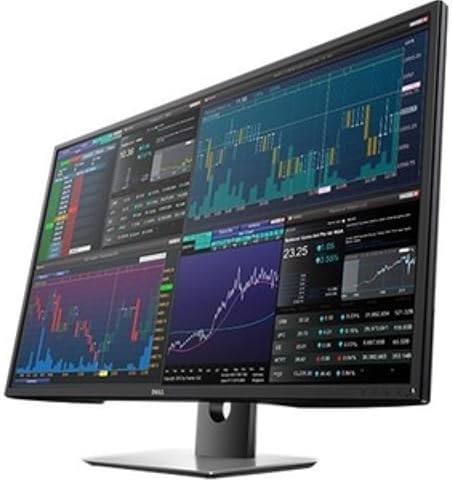
The Dell 43-inch P4317Q monitor offers Ultra HD 4K resolution with a large, bezel-free display suitable for multi-client content viewing. It features an anti-glare matte screen, multiple input ports, and a high brightness level for clear, comfortable visuals across wide viewing angles.
Pros:
- Large 43-inch 4K display with high resolution clarity
- Bezel-free design ideal for multi-monitor setups
- Anti-glare matte screen reduces reflections
- Multiple input ports for versatile connectivity
Cons:
- Heavy at 54 pounds, may require sturdy mounting
- Limited to 60Hz refresh rate, not ideal for fast-paced gaming
- Price not specified, may be expensive for some users
Best for: Developers and testers needing ample workspace
Not ideal for: Basic or small monitors for detailed work
Bottom line: Opt for a high-res, ergonomic monitor to boost productivity.
Ergonomic Accessories
The Kinesis Advantage360 Professional Split Ergonomic Keyboard is designed to reduce strain and improve comfort during long coding or testing sessions. Its split layout encourages a more natural hand and wrist position, helping to prevent repetitive strain injuries. When selecting ergonomic accessories, look for features like adjustable tilt, key layout, and connectivity options such as Bluetooth for wireless setups.
Common mistakes include choosing keyboards that are not adjustable or do not support a natural typing posture, which can lead to discomfort over time. Compatibility with your workspace setup—whether you prefer wireless or wired connections—is also important. Ergonomic accessories should complement your existing desk and seating arrangements, promoting good posture and reducing fatigue. Consider trying different models if possible, to find the most comfortable fit for your typing style and needs.
What to look for:
- Split or ergonomic design
- Wireless Bluetooth connectivity
- Adjustable tilt and height
- Compatible with your devices
- Comfortable key layout
Kinesis Advantage360 Professional Split Ergonomic Keyboard – Bluetooth, Quiet Me

The Kinesis Advantage360 is an ergonomic split keyboard designed to enhance comfort and productivity with a contoured shape, adjustable tenting, and quiet mechanical switches. It offers wireless connectivity, programmability, and compatibility with major operating systems, making it suitable for professional and power users.
Pros:
- Ergonomic split design reduces strain and increases comfort
- Quiet mechanical switches provide a smooth typing experience
- Fully programmable with open-source support for customization
- Adjustable tenting for personalized ergonomic setup
Cons:
- Premium palm pads sold separately
- Complex setup may require technical knowledge
- Higher price point due to advanced features
Best for: Long-hour coders and QA testers
Not ideal for: Minimalist or non-ergonomic keyboard models
Bottom line: Invest in ergonomic accessories to enhance comfort and reduce strain.
Storage Solutions
The Samsung T9 Portable SSD 4TB USB 3.2 Gen 2×2 External Solid State Drive offers fast data transfer speeds and ample storage capacity, making it perfect for managing large project files, test data, and backups. When choosing storage solutions, prioritize speed, capacity, and durability. External SSDs are especially useful for mobile workflows and collaborative environments where quick data access is essential.
Common mistakes include opting for drives with lower speeds or insufficient capacity, which can slow down your workflow. Ensure compatibility with your computer’s ports and operating system. Look for rugged designs or protective cases if you need to transport the drive frequently. Regular backups and data management practices are also crucial for maintaining data integrity and security. A reliable external drive can be a vital part of your toolkit, supporting seamless data transfer and storage flexibility.
What to look for:
- High transfer speeds (USB 3.2 Gen 2×2 or higher)
- Large capacity (at least 4TB)
- Durable build or rugged design
- Compatibility with your devices
- Fast read/write performance
Samsung T9 Portable SSD 4TB USB 3.2 Gen 2×2 External Solid State Drive
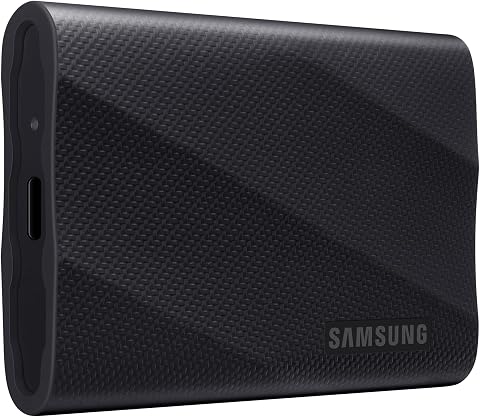
The Samsung T9 Portable SSD offers ultra-fast transfer speeds of up to 2,000MB/s, making it ideal for creators and heavy-duty applications. It features advanced thermal management, broad compatibility with various devices, and includes software for firmware updates and security.
Pros:
- Extremely fast transfer speeds suitable for large files and video editing
- Advanced thermal management keeps the drive cool during heavy use
- Broad device compatibility including smartphones and gaming consoles
- Includes software for firmware updates and security
Cons:
- Requires included SSD cable for optimal performance
- Premium price point may be high for some users
Best for: Data-heavy projects and mobile workflows
Not ideal for: Slow or small-capacity drives for large files
Bottom line: Choose a reliable, high-capacity SSD for efficient data management.
Embarking on your equipment upgrade or setup? Prioritize quality and compatibility to ensure your tools serve you well now and into the future. Starting with essentials like a powerful laptop and a reliable network switch can set a solid foundation for productivity.
Remember, investing in the right hardware not only improves your workflow but also enhances comfort and efficiency. Take your time to evaluate each item carefully, and don’t hesitate to seek expert advice if needed. Your ideal workspace awaits—happy shopping!